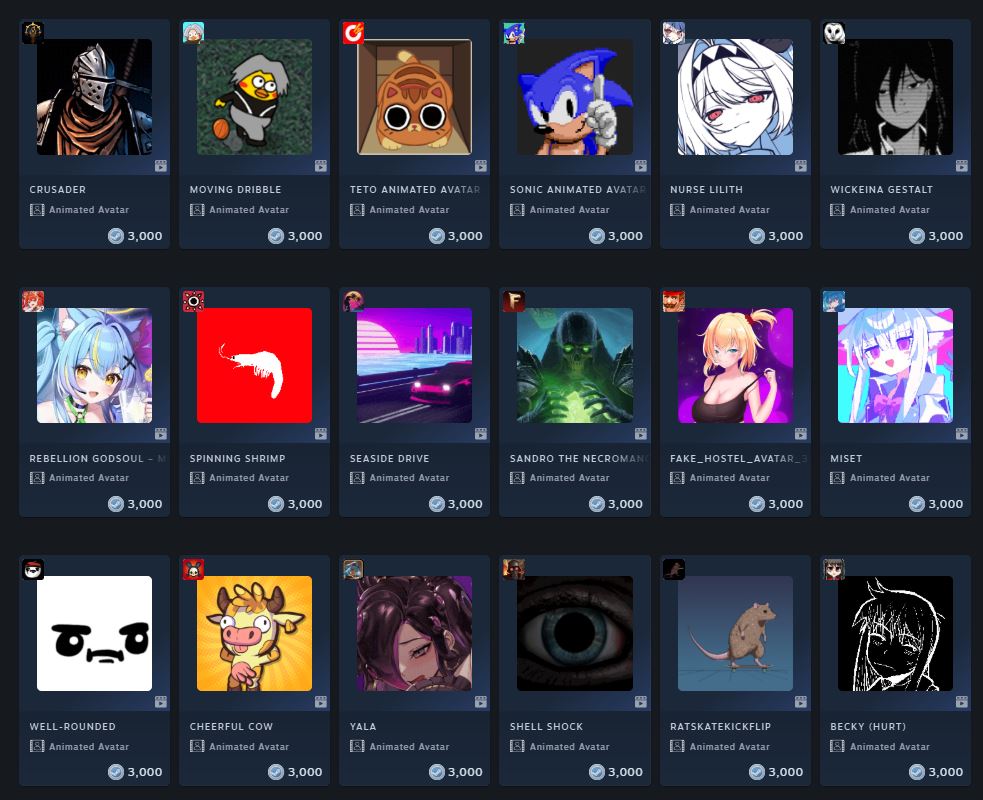
In Counter-Strike 2, your profile is your face. A sleek image on the scoreboard is not only pleasing to the eye but also makes you memorable to your teammates. In 2026, the Steam profile customization system has become even more flexible. In this guide, we’ll break down how to create a CS2 avatar, how to upload your own image, and how to get "live" animations for free.
The Simple Way: How to Create a CS2 Avatar via Steam
Since CS2 is fully synchronized with the Steam platform, there is no need to upload a photo to the game itself separately. All changes take place through your account settings.
Step-by-Step Instructions:
- Open the Steam client and click on your nickname in the top menu.
- Select the "Profile" section, then click the "Edit Profile" button.
- Go to the "Avatar" tab.
- Click "Upload your avatar" and select any image from your PC.
- Adjust the scale and click "Save."
Technical Tip: The optimal image size is 184x184 pixels. Use .jpg or .png formats for the best quality.
How to Make Animated Avatars in CS2
Many players want their image to move on the scoreboard. The question of how to make animated avatars in CS2 has become especially relevant following the "Points Shop" updates.
Important to know: You cannot simply upload your own .gif file—Steam will block it for security reasons. To get an animation, you must use the platform's official tools.
Instructions for Purchase and Installation:
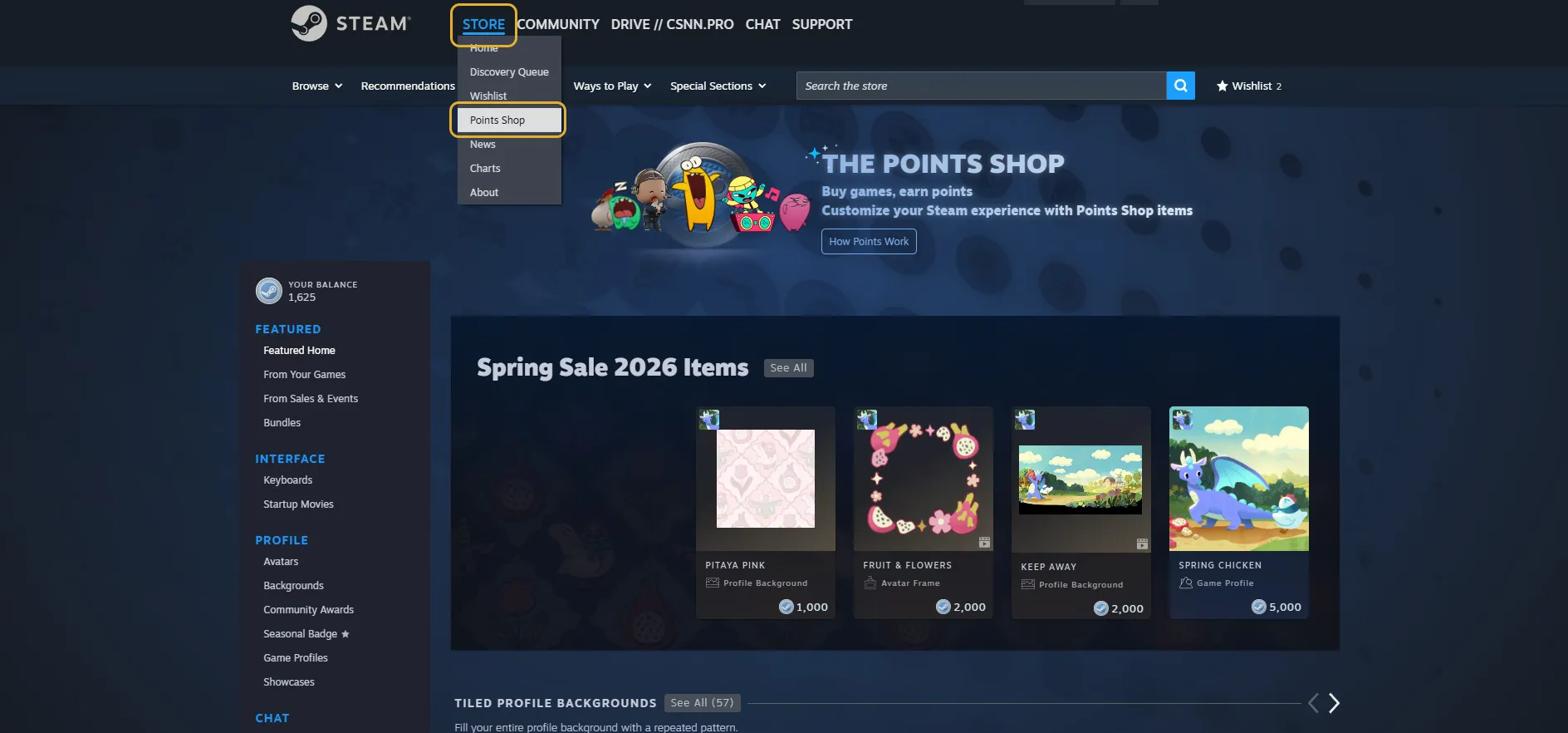
Go to the Points Shop: Hover over the "Store" tab and select "Points Shop."
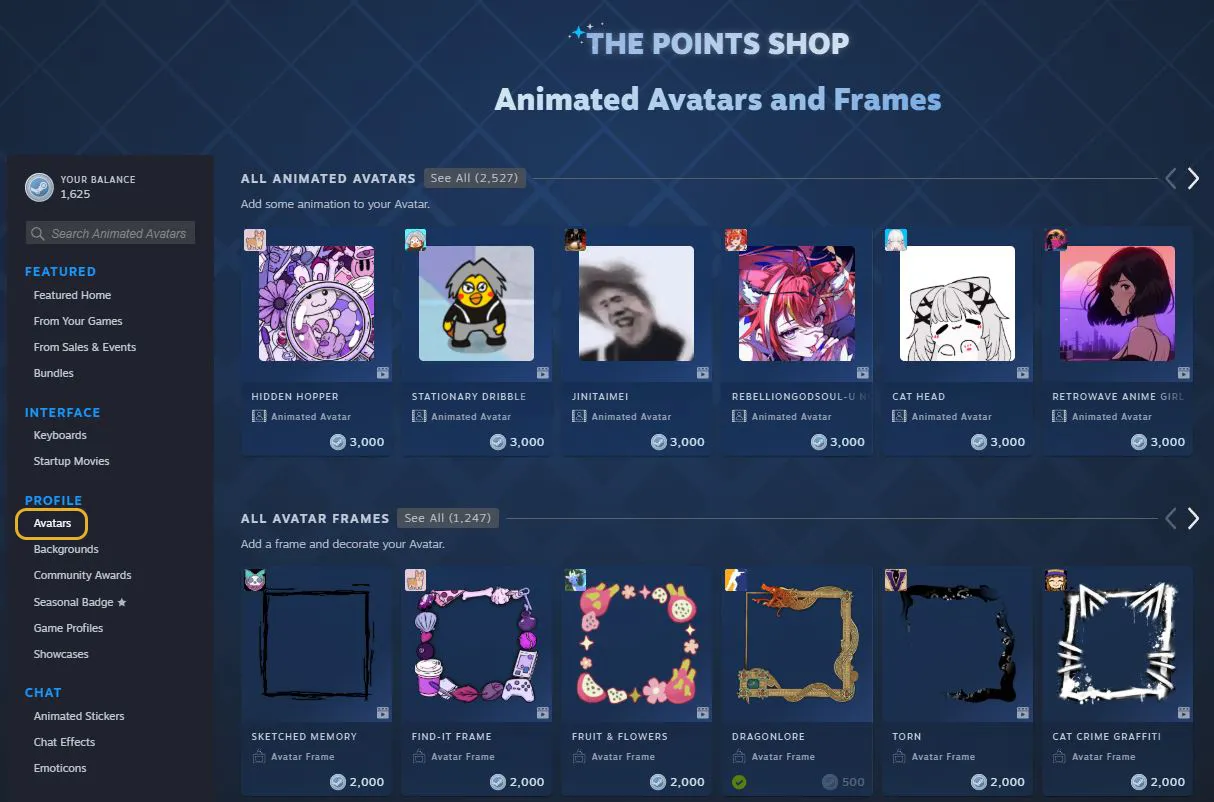
Find the "Avatars" Category: This is located in the column on the left side of the screen.
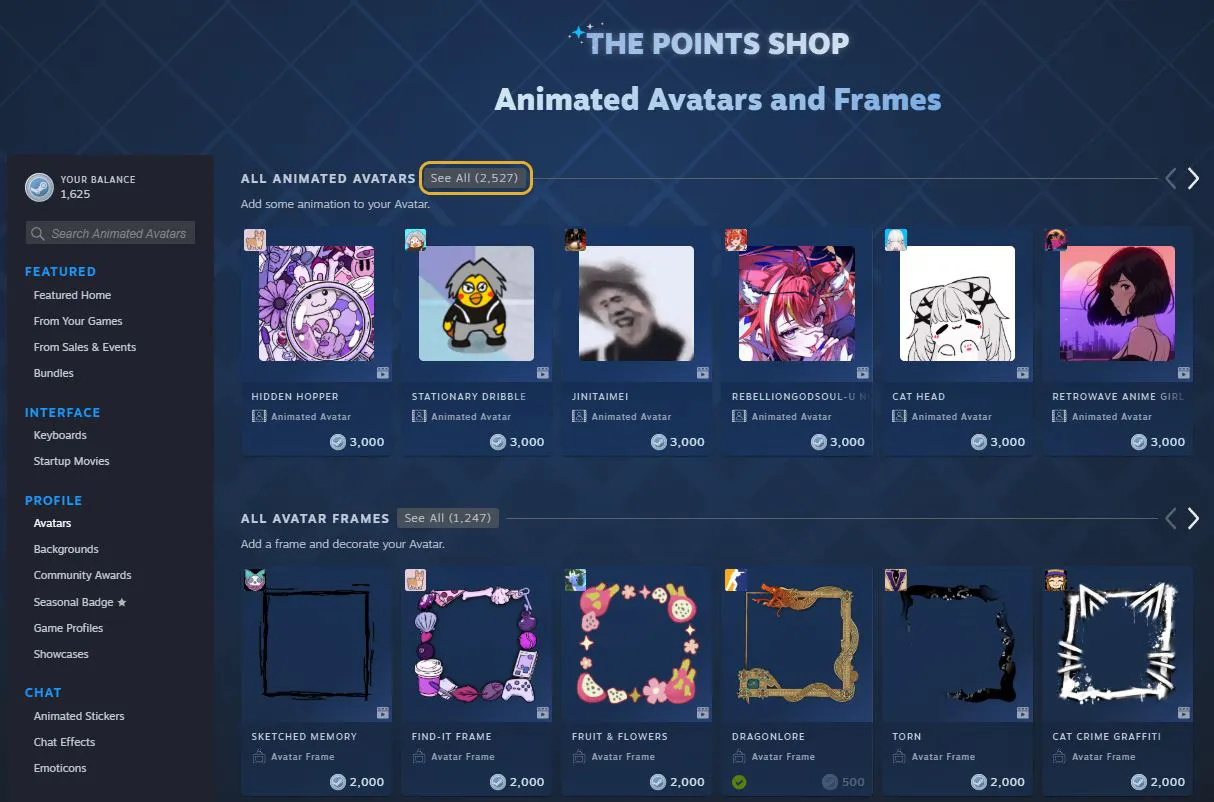
Choose a Design: You will see a list of animated avatars and frames. Click "See All" to view the full catalog. Pick your favorite and purchase it using Steam Points.
Activation: * Return to "Profile" -> "Edit Profile."
- Go to the "Avatar" category.
- Select your purchased animated avatar and click "Save."
How to Get a "Live" CS2 Avatar for Free?
Many are looking for a way to get a live avatar in CS2 without spending real money or accumulated points. This is actually possible thanks to regular activities hosted by Valve.
To get animated items for free, follow these tips:
- Watch for Sales: During major festivals (Summer/Winter Sales), Steam often gives out rewards for viewing your Discovery Queue.
- Participate in Events: For example, during the Turn-Based RPG Fest, all users could claim an avatar frame, an animated avatar, and a sticker for free.
- Free Bonuses: To get an animated avatar, you don’t necessarily have to buy games—just check the "Points Shop" tab during holidays and claim your seasonal gifts.
Why is my CS2 Avatar Not Displaying?
If you’ve figured out how to make a CS2 avatar but it isn’t changing in-game:
- Server Delay: Valve needs time (from 10 minutes to a couple of hours) to update the cache across all servers.
- Account Restrictions: If your avatar violates community guidelines (NSFW, violence), moderation may temporarily block your ability to change it.
- Beta Versions/Bugs: Occasionally during game updates, Steam Cloud may fail to sync data. Simply restart the game.
FAQ: Quick Summary
- Can I use my own GIF? No, only those purchased or earned during Steam events.
- How do I make a transparent avatar? You can upload a transparent PNG, but it’s easier to buy a "transparent" avatar from the Points Shop for 3,000 points.
- Can others see my animation? Yes, animated avatars are visible to all players on the scoreboard (TAB) and in your profile.