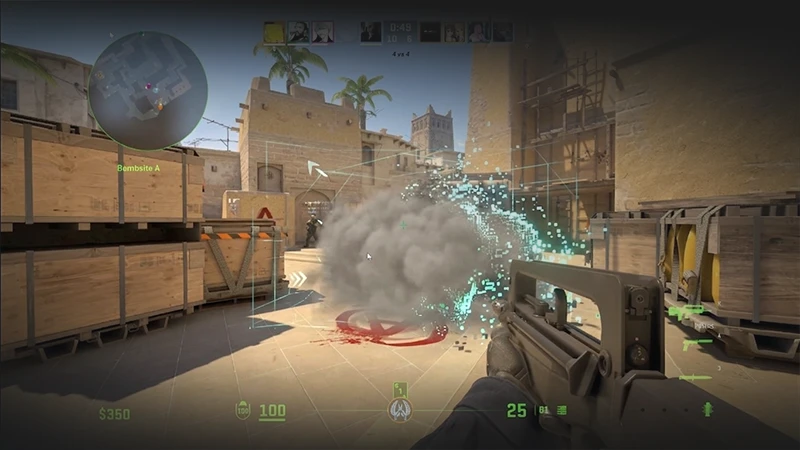
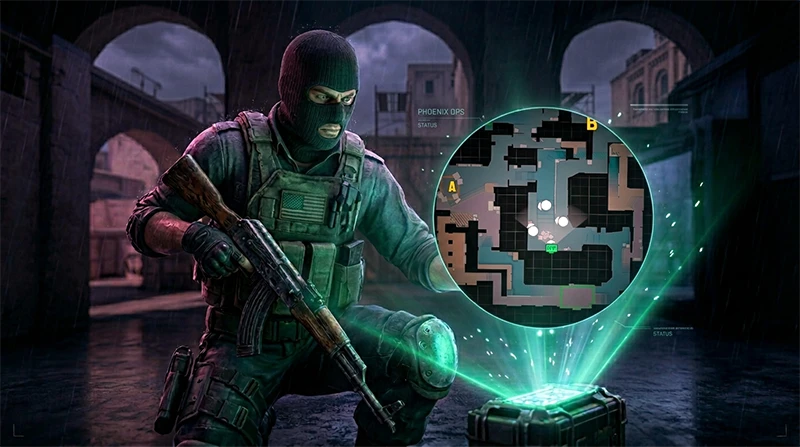
The default radar in Counter-Strike 2 is completely unsuited for competitive play. It is excessively zoomed in, rotates awkwardly with your player model, and displays only a tiny radius around your character. In a meta defined by dynamic sub-tick networking and volumetric smoke clouds, clutching up and reading the map is practically impossible without perfect visual intel.
In this guide, we will completely overhaul your mini-map using console variables and menu options, set up a dynamic radar zoom bind, and break down the exact configs used by top esports professionals.
Why the Default CS2 Radar is Holding You Back
The standard radar constantly centers on your player model. If you are holding the A-site on Mirage, for example, your mini-map physically cannot show you what is happening over on B - leaving you blind to whether the enemy is executing a full site hit or just throwing a lone fake execute.
A properly configured competitive radar solves three critical issues at once:
- Global Map Awareness: You instantly see the movement of your teammates and spotted enemies across the entire map.
- Flawless Smoke Positioning: When the bomb is planted inside a thick smoke cloud, your radar is the only tool that allows you to pinpoint its exact location and start defusing without wasting precious seconds.
- Zero Comms Required: You don’t need to constantly yell at your teammates to ask where the C4 was dropped - the icon will instantly flash on your screen.
Complete CS2 Radar Setup via Console Commands
You can execute these commands one by one in the developer console (tilde key ~) or add them directly to your autoexec.cfg file for a permanent fix.
Adjusting Map Scale and Size (cl_radar_scale)
This is the single most important variable for pulling your mini-map view back so it displays the entire layout.
cl_radar_scale 0.35
The default value is 0.7 (adjustable from 0.25 to 1.0). Setting this to 0.35 is the absolute sweet spot for the active duty map pool (Mirage, Inferno, Nuke, Anubis). The view zooms out, giving you full visibility of every single choke point simultaneously.
If you find it difficult to read tiny details on a zoomed-out map, you can increase the physical scale of the radar HUD element itself:
cl_hud_radar_scale 1.15
The default is 1.0. This command scales up the actual UI circle on your screen without messing with the internal map zoom scale you set above.
Centering and Rotation (cl_radar_always_centered)
By default, the radar locks your icon dead-center. Because of this, half of your radar space turns into a useless black void whenever you are standing near the edge of the map (like a spawn area).
cl_radar_always_centered 0
Setting this to 0 unlocks your icon from the center. The map layout locks into place, and your icon moves freely across it, reclaiming massive amounts of screen real estate.
cl_radar_rotate 1
Setting this to 1 keeps the map rotating according to where your crosshair is pointing. Setting it to 0 makes the map completely static. Most players prefer to keep rotation enabled (1) to instantly read whether a threat is flashing to their left or right.
Icon Scaling and Visibility
In the middle of an intense firefight, tiny player dots can easily blend together. Let’s make them stand out:
cl_radar_icon_scale_min 0.7
This scales up player blips and C4 icons on the map, making teammate positioning and bomb drops incredibly easy to spot.
CRITICAL WARNING: Many players scour the web looking for ways to make the radar background transparent using old CS:GO variables like cl_radar_alpha. Be aware: in the current Source 2 engine pipeline, direct console control over radar transparency has been completely disabled by developers to preserve competitive integrity. Background opacity can now only be adjusted via the default UI style settings in the game's main menu. Do not use third-party layout tools to force HUD transparency, as this can trigger a VAC ban!Dynamic Radar Zoom Bind for Clutches
One of the best-kept pro secrets is utilizing a dynamic zoom script. When you are rotating or holding map control, you want a macro view (scale 0.35). But when you jump inside a smoke cloud or start spraying down an enemy through a defuse block, you need an instant close-up (scale 0.7) to pinpoint footsteps and red enemy pings.
To automate this, bind a toggle script to your Caps Lock key (or any accessible key like Q or V):
bind "CAPSLOCK" "toggle cl_radar_scale 0.35 0.7"
Now, a single tap switches your perspective from a global view to an aggressive close-up. This simple tweak saves dozens of clutch situations.
If you want the radar to zoom in only while you hold the key down, add this alias script to your custom config file:
alias "+radar" "cl_radar_scale 0.7"
alias "-radar" "cl_radar_scale 0.35"
bind "KEY" "+radar"
(Just replace KEY with your preferred button).
Is a Square Radar in CS2 Possible?
A legacy setup query still floating around the community is how to get a permanent square radar in CS2, similar to the old-school overlay that appeared when pulling up the scoreboard (Tab) in previous titles.
In the current Counter-Strike 2 build, forcing a permanent square radar using native game parameters is completely impossible. The Source 2 engine locks the HUD radar element into a circular frame. Any guides suggesting you swap out Panorama design sheets (panorama/layout) or run external overlay programs will compromise your account status. The best, 100% legal alternative is dropping your map scale down to cl_radar_scale 0.35, which actually provides a wider field of view than the old square presets.
Pro Player Radar Config Presets
If you don’t want to tweak these variables manually, you can copy-paste these pre-made strings directly into your developer console:
1. Pro Esports Preset (Used by donk & m0NESY)
Optimized for global map coverage, uncentered positioning, and scaled-up indicators for rapid macro reads.
cl_radar_always_centered 0; cl_radar_scale 0.35; cl_hud_radar_scale 1.15; cl_radar_icon_scale_min 0.75; cl_radar_rotate 1
2. Balanced Solo-Queue Preset
Perfect for players who prefer a more familiar, default look but still want additional visual info without a jarring scale shift.
cl_radar_always_centered 1; cl_radar_scale 0.45; cl_hud_radar_scale 1.0; cl_radar_icon_scale_min 0.6; cl_radar_rotate 1
Cheat Sheet: The Ultimate Competitive Radar
Double-check your setup using this quick reference matrix:
| Command | Core Function | Optimal Value for Matchmaking / FACEIT |
| cl_radar_scale | Dictates the zoom level of the map geometry | 0.35 (Displays the entire map layout) |
| cl_radar_always_centered | Locks your player blip dead-center | 0 (Map remains fixed; unlocks full visibility) |
| cl_hud_radar_scale | Adjusts the physical size of the HUD circle | 1.15 (Makes the radar cleaner and easier to read) |
| cl_radar_icon_scale_min | Scales player and bomb markers | 0.7 (Large, unmistakable player icons) |
| cl_radar_rotate | Toggles map rotation based on crosshair direction | 1 (Easier to track flanking angles relative to view) |
Lock these variables into your game, throw on a dynamic zoom bind for tight clutch situations, and you'll completely eliminate blind-spot entries while significantly boosting your round win conditions.
Visual Upgrades: Skins That Complete Your Loadout
Once your radar settings are perfected and you're reading the mini-map like an open book, your ability to spray through smoke walls will skyrocket. Picking off enemies blindly by tracking nothing but a shifting red dot on your HUD is a hallmark skill of a modern CS2 player. And locking down those smoke spams is twice as satisfying when you're rocking a pristine weapon layout.
To elevate your inventory without overpaying on the Steam Market, check out our verified ranking of the top CS2 skin trading hubs. These third-party marketplaces offer incredibly safe, high-end skin styles that look stunning under Source 2's lighting engine. Don't forget to trigger exclusive bonus codes from CSNN.PRO during checkout to claim premium knives, gloves, and rifle finishes with massive discounts. Combining top-tier map awareness with a high-flex weapon loadout is the ultimate recipe for confidence on the server!