Reviewing your own matches is the absolute best way to analyze your tactical mistakes or record a sick highlight clip. In this breakdown, we will cover every available method: how to play a demo in CS2 using the main user interface, the developer console, and what to do with external third-party match files.
How to play a demo of your matchmaking games in CS2
The easiest way to review a recently played match is to utilize the game's built-in match history log.
- Launch CS2 and click on the TV icon (Match TV) in the top main menu.
- Navigate to your Your Matches tab.
- Select the specific game you want to analyze and click the Download button in the bottom right corner.
- Once the download finishes, the button will toggle to Watch Replay. Click it to instantly load up the demo.
How to play a demo via the console
If you require deeper playback control or want to open a file directly, you need to know how to play a demo via the console. This is the preferred method for advanced players and analyst staff as it loads assets much faster.
- Ensure the Developer Console is enabled in your game settings.
- Press the tilde key (
~). - Input the following command:
playdemo [file_name]
For example: playdemo my_ace_dust2 4. Hit Enter, and the engine will immediately start caching and loading the match file.
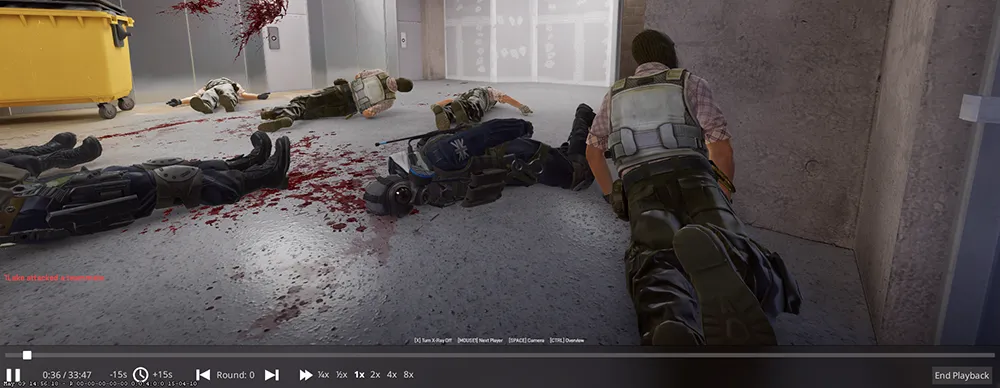
Pro Tip: To open the streamlined demo playback control dashboard (pause, fast-forward, playback speed, timeline slider), press the Shift + F2 hotkey combination.
How to play a downloaded demo in CS2 (FACEIT or tournaments)
Players frequently wonder how to play a downloaded CS2 demo obtained from external platforms like FACEIT or HLTV. The precise step-by-step process is as follows:
Step 1: Unpacking the file
Downloaded matches usually come compressed inside an archive (.zip or .rar). Extract the raw file, ensuring it has the .dem extension.
Step 2: Placing the file in the correct directory
For the developer console to properly register the match file, you must move it into the core game directory. The default destination path is: ...\Steam\steamapps\common\Counter-Strike Global Offensive\game\csgo\
Step 3: Launching the playback
Now you are ready to play your downloaded demo in CS2: simply bring up your in-game developer console and execute the playdemo command appended with the exact filename of your match.
Essential commands for demo playback management
Since you now know how to boot up a match replay, here is a list of vital console variables to make your review sessions significantly more efficient:
demoui
Brings up the classic playback control panel overlay (an alternative to Shift+F2).
demo_pause
Instantly pauses the match timeline tracking.
demo_resume
Resumes playback after a pause.
spec_show_xray 1
Enables player outlines through solid surfaces (X-Ray vision) to analyze positioning.
FAQ: Frequently Asked Questions
- Why is my downloaded demo failing to load? Double-check that your file ends strictly in
.demand resides explicitly within the/game/csgo/subfolder. Additionally, ensure the filename does not contain spaces or special localized characters - stick strictly to Latin alphanumeric characters and underscores. - Can I rewind a demo backward? Yes, the
demouicontrol panel features a scrubbable timeline slider. However, keep in mind that rewinding backward in CS2 can take a few seconds, as the Source 2 engine must re-calculate exact model coordinates and sub-tick movement vectors from the start of the round tick.