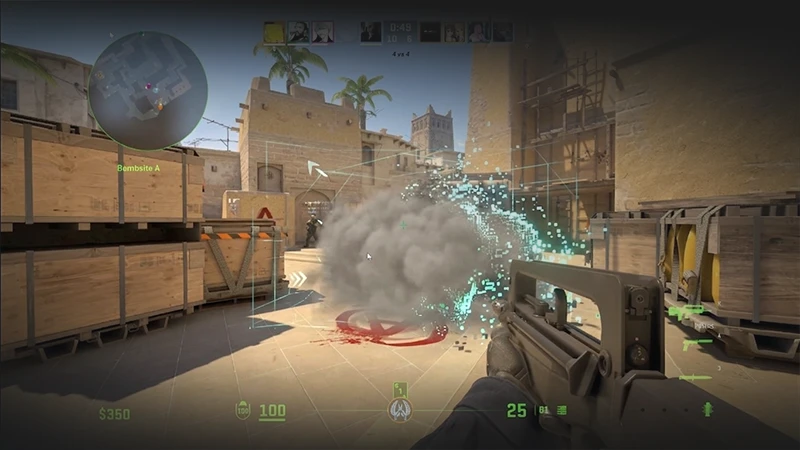
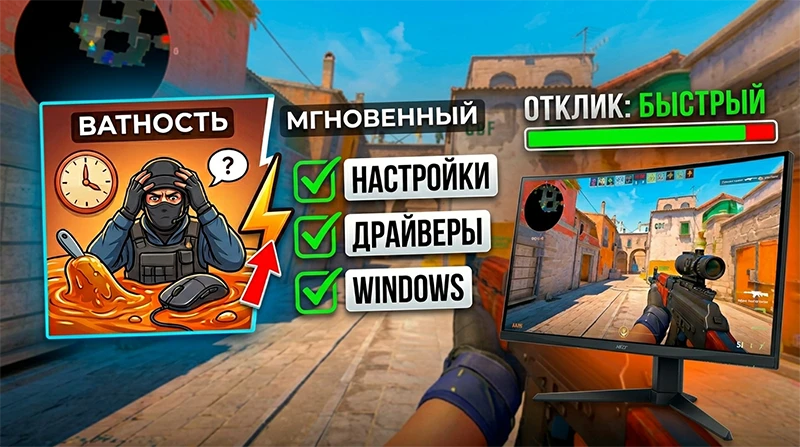
Following the release of Counter-Strike 2 on the Source 2 engine and the introduction of the sub-tick system, thousands of players noticed a frustrating "floaty" or "heavy" feel to the game. Even when your FPS is soaring, the mouse can feel like it’s dragging through mud, and your shots seem to register with a microscopic delay. This is input lag - the latency between your physical action (clicking your mouse or moving your arm) and the game actually registering that input.
In a competitive tactical shooter, a few extra milliseconds of delay directly tank your win rate and cost you crucial duels. In this guide, we’re going to break down exactly how to remove input lag in CS2 using a killer combination of in-game settings, driver tweaks, and Windows optimization.
What is Input Lag in CS2 and Why Does the Game Feel "Sluggish"?
Input lag is the total cumulative delay born from your mouse/keyboard response times, the CPU and GPU render times, and your monitor's refresh rate.
Because of Source 2's specific networking and rendering pipeline, input latency hits way harder in CS2 than it ever did back in CS:GO. If your graphics options are messed up and your GPU is pinned at 99-100% load, your input lag spikes instantly. Our primary objective here is to slash frame preparation times and give your hardware some breathing room.
Smashing Input Lag via In-Game CS2 Settings
Getting your in-game video settings right is 50% of the battle. Open up your video settings tab and lock in these exact parameters:
- Display Mode: Set this strictly to
Fullscreen. Running the game in Windowed or Borderless Windowed modes forces Windows' Desktop Window Manager (DWM) to handle the frame syncing, which introduces massive input lag. - Vertical Synchronization (V-Sync): Set to
Disabled(Non-negotiable). V-Sync is the absolute worst culprit for input delay in any first-person shooter. - Anti-Aliasing Mode: Stick to
2x MSAAorNone. Heavy anti-aliasing setups absolutely murder your GPU performance. - NVIDIA Reflex Low Latency: Toggle this to
EnabledorEnabled + Boost. This tech syncs up your CPU and GPU cycles, effectively killing render latency on the spot. The "+ Boost" mode keeps your GPU from dropping its clock speeds, which is incredibly useful if you have a slight CPU bottleneck. - Increase Player Contrast: Turn
Disabledif you're desperately hunting for FPS, or leave itEnabledif your CPU is strong enough. This feature adds a small overhead to your system.
Optimizing GPU Drivers (NVIDIA & AMD) for Instant Response
Your graphics card control panel holds a handful of hidden toggles that can heavily optimize input lag in CS2.
For NVIDIA Users:
- Right-click your desktop and open the NVIDIA Control Panel.
- Head to "Manage 3D Settings" -> click the "Program Settings" tab -> select Counter-Strike 2.
- Low Latency Mode: Set this to
Ultra(if you aren't utilizing Reflex in-game) or leave it on default if Reflex is already handling the pipeline. - Power Management Mode: Switch this to
Prefer maximum performance. - Texture Filtering - Quality: Drop this down to
High Performance.
For AMD Users:
- Launch your AMD Software: Adrenalin Edition.
- Go to Gaming -> Counter-Strike 2.
- Flip the switch on AMD Anti-Lag (or Anti-Lag+ if your specific GPU supports it). This is AMD's direct answer to NVIDIA Reflex, dropping input lag straight at the driver level.
Windows Tweaks: Hunting Down System Input Delay
By default, Windows tries to keep your desktop smooth and pretty, but its background processes actively hurt competitive gaming. Here is how we execute a cs2 input lag fix at the OS level:
- Disable Fullscreen Optimizations: Locate your game's main executable file,
cs2.exe(usually hidden away insteamapps\common\Counter-Strike Global Offensive\game\bin\win64). Right-click it -> Properties -> Compatibility tab -> check the box forDisable fullscreen optimizations. - Turn on Game Mode: Type "Game Mode settings" into your Windows search bar and flip the toggle to On. This forces Windows to prioritize CPU threads straight to CS2.
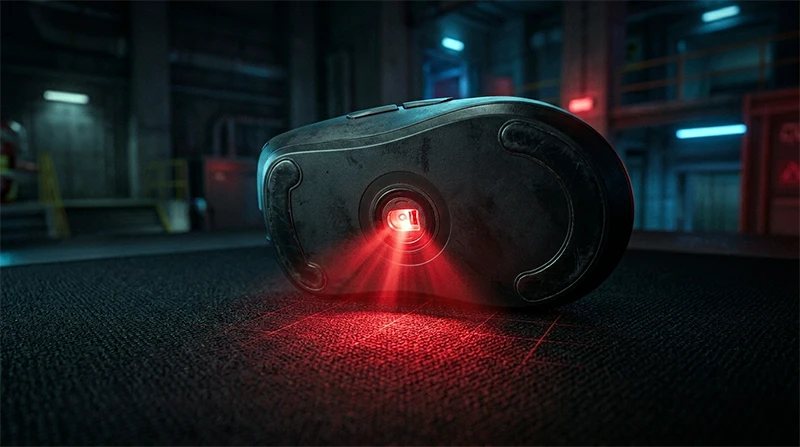
- Mouse Polling Rate Check: Fire up your mouse software (Logitech G Hub, Razer Synapse, SteelSeries GG, etc.) and double-check that your polling rate is locked at 1000 Hz or higher. Leaving it at 125 Hz or 500 Hz introduces heavy, noticeable hardware latency.
Anti-Lag CS2 Launch Options
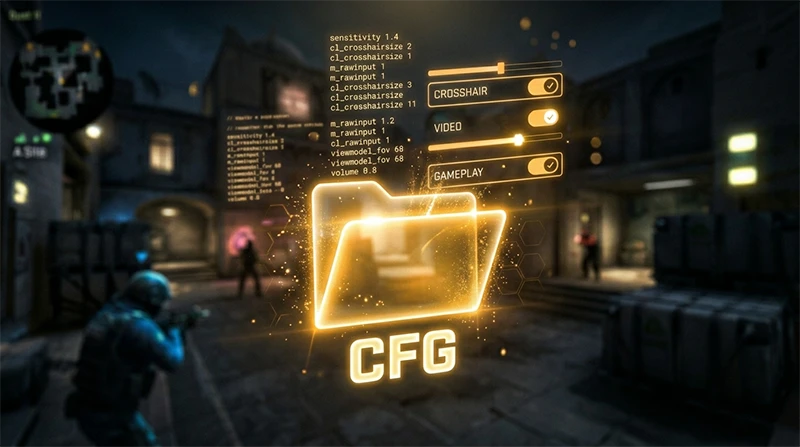
A couple of classic console arguments can force the Source 2 engine to run much more predictably. Open up your CS2 properties in Steam and paste these exact commands into your "Launch Options" box:
-high(Forces the OS to give CS2 high CPU priority)-threads X(Replace X with the exact number of physical cores your CPU has, helping Source 2 optimize thread distribution)
Hardware Reality Check: When Software Fixes Fall Short
You can customize your OS to perfection, wipe your graphics drivers clean, and execute every hidden console variable in the book - but if you're rocking a budget office mouse over a basic Bluetooth connection, or a old 60 Hz monitor with a 5ms response time, your game is going to feel sluggish.
Upgrading to a proper esports-grade monitor featuring 144 Hz / 240 Hz / 360 Hz and picking up a top-tier low-latency wireless mouse (boasting 4000 Hz to 8000 Hz polling rates) is the only legitimate way to drag your physical hardware input lag down to absolute zero.
Checklist: The 5-Minute CS2 Input Lag Fix
If you need an immediate sanity check right before a match, make sure these 4 core pillars are checked off:
- The game is running strictly in Fullscreen mode.
- V-Sync is completely disabled across all in-game and driver menus.
- NVIDIA Reflex or AMD Anti-Lag is actively turned on.
- Your GPU load isn't getting choked out at 100% mid-game (if it is, dial back your Shadow Quality and Particle Effects settings).
Deploy these tweaks, lighten the load on your hardware, and your bullets will finally start registering the absolute millisecond you click that mouse!