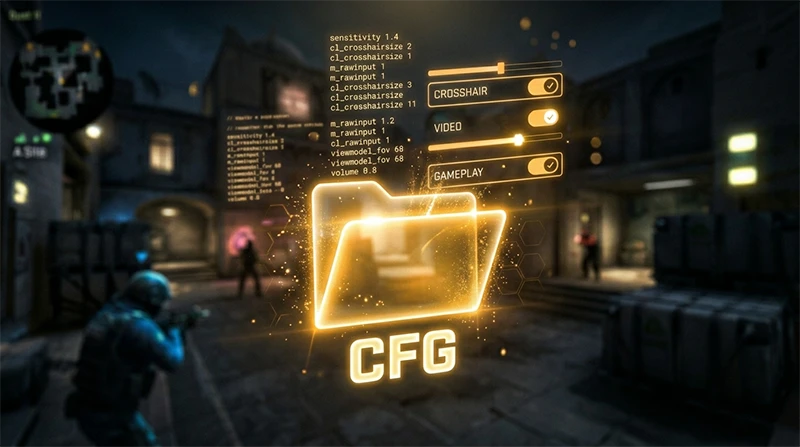

Counter-Strike 2’s visual layout received a massive, fresh overhaul with the migration to the Source 2 engine, but let’s be honest: the standard text interface (the HUD, scoreboard, and buy menu) can get boring real fast. Customization is a huge part of making your gameplay experience comfortable. However, players often mix up two completely different things: tweaking the actual in-game font and designing a stylish profile nickname.
In this deep-dive guide, we are covering both tracks: how to legally change your CS2 system font via game files and how to craft a unique nickname font to make your name pop on the scoreboard.
Changing the CS2 Interface Font: What Changed with Source 2?
Back in the day with CS:GO, swapping out UI text was a two-minute job thanks to platforms like CS:GO Fonts and basic file dragging. In CS2, Valve completely rebuilt the graphical framework around the updated Panorama UI system. Now, the in-game typography is hard-coded directly into the style configuration sheets.
Because of this, you can no longer just drop a raw .ttf file into the root directory and call it a day - doing so will either break your main menu or trigger an error when trying to boot onto official servers. Luckily, there is still a perfectly clean, functional way to customize it safely.
How to Change the Font in CS2 via Game Files (Step-by-Step)
To install a custom font for your HUD and menus, all you need is the actual file of your chosen typography (download any style you like in .ttf or .otf format from reputable sites like Google Fonts) and some basic file navigation skills.
Step 1: Locating the Default Game Fonts
First, we need to head to the directory where the Source 2 engine keeps its localized style layouts.
- Open Steam, right-click CS2 -> Manage -> Browse local files.
- Navigate down the following path:
\game\csgo\panorama\fonts\ - Inside this folder, you’ll find the game’s core typography. The ones we care about are
notosans-bold.ttf(which dictates most of the UI text, health values, ammo counts, and the scoreboard) andstratum2-bold.ttf.
Step 2: Preparing and Converting Your New Font
- Grab your newly downloaded custom text style (popular esports favorites include Futura or Ubuntu).
- Create two separate duplicates of this file.
- Rename the first duplicate to
notosans-boldand the second duplicate tostratum2-bold(keep the.ttfextension untouched).
Step 3: Swapping the Files and Verifying In-Game
Copy and paste your newly renamed files directly into the \game\csgo\panorama\fonts\ directory, approving the prompt to overwrite the originals.
PRO TIP FROM CSNN.PRO: Always copy the original game files to a backup folder on your desktop before overwriting them. If your custom font looks weird or bleeds outside the UI boundaries, you can restore the default HUD in a single click.
Boot up CS2 and load into an offline practice map with bots to double-check how your new numbers and text elements look on screen.
Is Modding Fonts in CS2 Safe, or Will I Get Banned?
This is the number one concern for players looking to make their HUD text more readable.
OFFICIAL STATUS FOR 2026: Modifying files inside the panorama/fonts directory is 100% safe. Valve Anti-Cheat (VAC) and third-party competitive platforms like FACEIT do not flag font files as malicious code or cheats. They don't hook into the cs2.exe execution process, and they grant zero competitive advantage. You can queue up for Premier matchmaking or high-stakes FACEIT hubs with absolute peace of mind.
How to Get a Cool Nickname Font in CS2
If you don't care about changing the interface and simply want a standout name in lobbies and on the scoreboard, you don't need to mess with game directories at all. Player names are handled directly by your Steam profile cloud. The CS2 engine fully supports UTF-8 encoding, allowing it to easily read hundreds of unique special characters and symbols.
Symbol Generators and Ready-To-Use Presets
To cook up a stylized nickname, a standard keyboard won't cut it. Your easiest route is utilizing online character generators (like Nickfinder or Lingojam) that automatically translate basic text into Gothic, underlined, circled, or artistic symbols.
Here are a few quick examples of how you can overhaul a basic username:
- 𝔖𝔫𝔨𝔢𝔲𝔭𝔢𝔯
- 制造__ m0NESY
- ⚡ S i m p l e ⚡
- ⎛⎝ Donk ⎠⎞
Simply copy the generated text output and paste it directly into the "Profile Name" field within your Steam Account Settings.
Steam Constraints on Special Characters
When crafting your custom username layout, keep these two critical constraints in mind:
- The "Box" Glitch: Certain ultra-rare Asian characters or custom glyphs are completely unsupported by CS2's built-in engine font. Instead of your cool design, your teammates will just see blank squares. Make sure to double-check your look inside a casual server.
- General Readability: Don't go overboard with an absolute wall of tiny icons. During an intense clutch scenario, your teammates need to easily read your name to call out utility info or drops.
Level Up Your Look: Match Your Skins to Your New HUD
Tweaking your fonts and personalizing your nickname is a massive step toward standing out on the server. Your crisp, minimalist HUD and a stylized name on the scoreboard will look twice as good if they vibe with the loadout in your hands. A customized game interface deserves matching firepower.
To build the perfect inventory aesthetic to complement your fresh game design, make sure to browse our curated ranking of top skin-trading marketplaces. These trusted platforms let you pick up premium loadouts while bypassing the heavy fees of the Steam Community Market. Head over to our verified partner hubs, trigger exclusive promo codes from CSNN.PRO, and claim elite knives, gloves, and weapon skins with discounts of up to 30%. Running a custom font alongside a high-status knife profile is the ultimate way to lock in your confidence for every match!
Summary Cheat Sheet: CS2 Font Customization
Here is your quick reference card for everything related to game font customization:
| Objective | Configuration Location | VAC Safety | Crucial Detail |
| Interface Typography (HUD, Ammo) | Folder: csgo/panorama/fonts | 100% Safe | Requires manual file swapping; keep a backup file handy. |
| Cool Profile Nickname Font | Steam Profile Settings | 100% Safe | Avoid overly obscure symbols to prevent the "blank box" glitch. |
| HUD Colors and Transparency | In-game Menu: Game -> HUD | Built-In Feature | Tailor it perfectly to your monitor size without any external tools. |
Utilize these steps, build your personal aesthetic signature on the server, and make your Counter-Strike 2 viewmodel setup a true pleasure to look at!