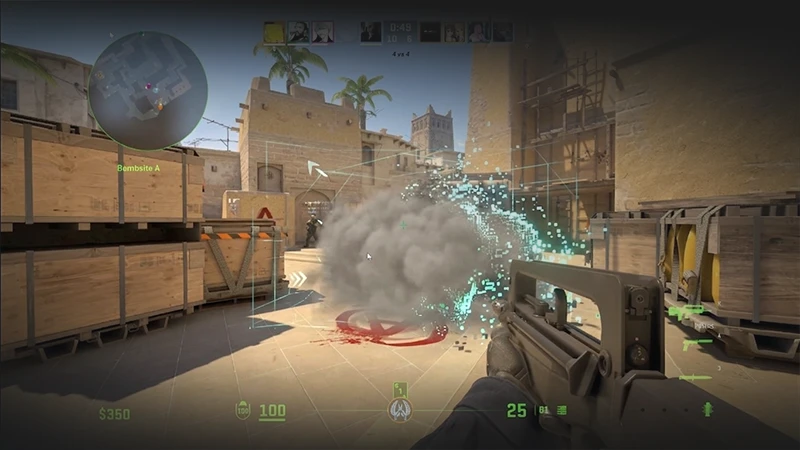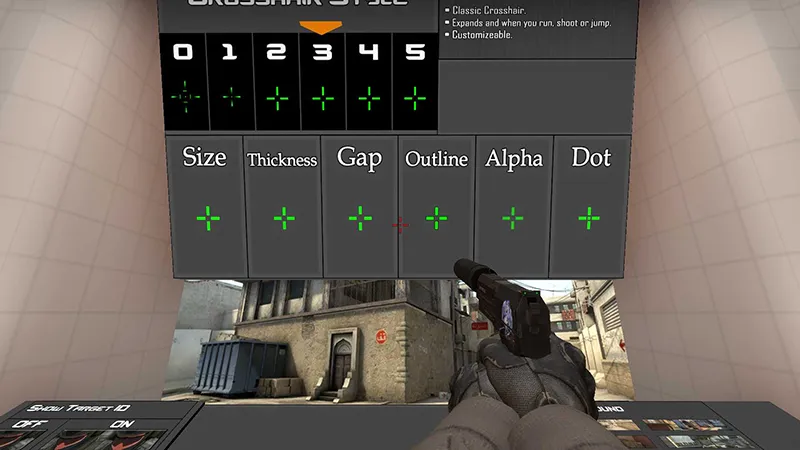
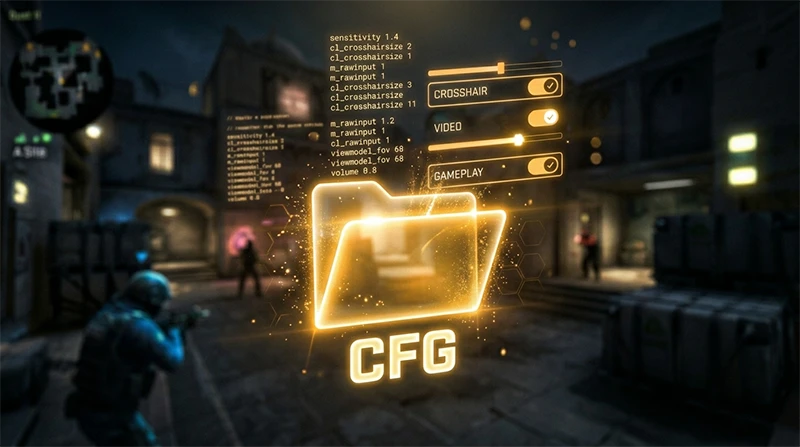
It happens to everyone: you mess up your console variables, copy a "broken" crosshair from a pro player, or install an unoptimized config file, turning your game into an unplayable mess. When this happens, the best solution is to wipe the slate clean and start fresh.
In this comprehensive guide from csnn.pro, we will break down exactly how to restore the default config in CS2, where the configuration files are physically located on your PC, and why you should never look for a third-party default CS2 config download online.
The Golden Rule: Why you shouldn't download a default config
If you are searching the web for a "default CS2 config download," we have great news: you don't need to download anything. In fact, downloading .cfg files from third-party websites is highly dangerous. Rogue configuration files can contain hidden malicious binds or settings that degrade your hit registration and sub-tick network packet processing.
Counter-Strike 2 already includes a pristine, factory-default config hidden inside its architecture. All we need to do is force the game to generate a fresh one by purging the old, corrupted data.
Method 1: The folder deletion method (Most reliable)
Many players make the mistake of deleting files from the steamapps/common/Counter-Strike Global Offensive directory. However, CS2 synchronizes account-specific parameters with the Steam Cloud and stores them in an entirely separate user directory.
Follow this step-by-step process to load the factory-default config in CS2:
- Completely close CS2 and exit the Steam client.
- Open This PC and navigate to your main Steam installation directory (by default, it is located at):
C:\Program Files (x86)\Steam\userdata\ - Inside the
userdatadirectory, you will see folders labeled with unique numbers. If you only use one Steam account, there will be only one folder. If there are multiple, select the one that matches your unique SteamID3. - Open folder
730(this is the official application ID for Counter-Strike), and then enter thelocalfolder. - The complete directory path looks like this:
...\Steam\userdata\[YourSteamID]\730\local\ - Locate the folder named
cfgand delete it entirely (or rename it tocfg_oldif you want to keep a backup of your old parameters just in case). - Relaunch Steam and boot up CS2. The game engine will detect the missing configuration files and instantly generate a completely clean, default CS2 config.
Method 2: Disabling Steam Cloud synchronization
If your corrupted settings persist even after deleting the folder, it means Steam Cloud automatically re-downloaded your broken configuration from the server.
To prevent this automatic overwrite, use the following steps:
- Open Steam, right-click on Counter-Strike 2, and select Properties.
- Under the General tab, locate the "Enable Steam Cloud synchronization for Counter-Strike 2" option.
- Toggle the switch to Off.
- Repeat Method 1 (deleting the
cfgfolder inside youruserdatapath). - Launch the game, configure your basic preferences from scratch, and then you can safely re-enable Steam Cloud sync if desired.
Method 3: Resetting Steam launch options
Sometimes, game-breaking parameters are not hidden inside your config file, but are instead hardcoded directly into your Steam Launch Options.
- Navigate to your Steam Library, right-click CS2, and open Properties.
- Scroll down to the Launch Options text field.
- Completely wipe out all text within the box (remove legacy commands like
-novid,-tickrate, etc.). - To force the engine to boot with factory-default video and display configurations, input the following flag:
-autoconfig
- Launch the game once, close it immediately, and remove the
-autoconfigflag from your Launch Options. If you skip removing it, your new video settings will fail to save on your next gaming session.
Crucial Warning Leaving -autoconfig active in your Launch Options will continuously wipe your video, audio, and binding configurations back to factory settings every time you boot the game. Always remove it after your initial reset launch.Now you know how to quickly restore your game to its original state. A clean, unburdened config is the absolute foundation for stable FPS, optimal frame pacing, and predictable hit registration. Reconfigure your crosshair and sensitivity manually, and your performance in Premier matchmaking will skyrocket!
To make playing on default settings even more enjoyable, complement your clean interface with stunning weapon visuals. Check out our verified, unbiased ranking of case opening sites, activate exclusive promo codes from csnn.pro, and unbox vibrant skins that will look flawless on CS2's pristine default engine settings!